User Guide v1.0
Run Tarzan with confidence.
Everything you need to sign in, connect your VALR account, set risk limits and let the bot trade — explained in plain language with pictures.
1. What is Tarzan SwingBot?
Tarzan is an automated swing-trading engine for the South African VALR exchange. You connect your VALR API keys, choose how much risk to take, and Tarzan does the rest — entering, exiting and protecting positions 24/7.
24/7 execution
Runs in the cloud, no PC required.
Auto stop-loss
Every position has a hard stop.
Paper mode
Test risk-free before going live.
Encrypted keys
AES-256-GCM at rest.
2. Sign in & two-factor verification
- 1Open the sign-in pageClick 'Sign in' in the top-right of the website. Access is invitation-only — your administrator must add your email first.
- 2Continue with GoogleTarzan uses Google OAuth. Click the button and pick the Google account that matches your invitation.
- 3Enter your 6-digit codeAfter signing in, you'll be asked for a TOTP code from Google Authenticator, 1Password, Authy, etc. First time? Visit /setup-2fa to scan the QR code.
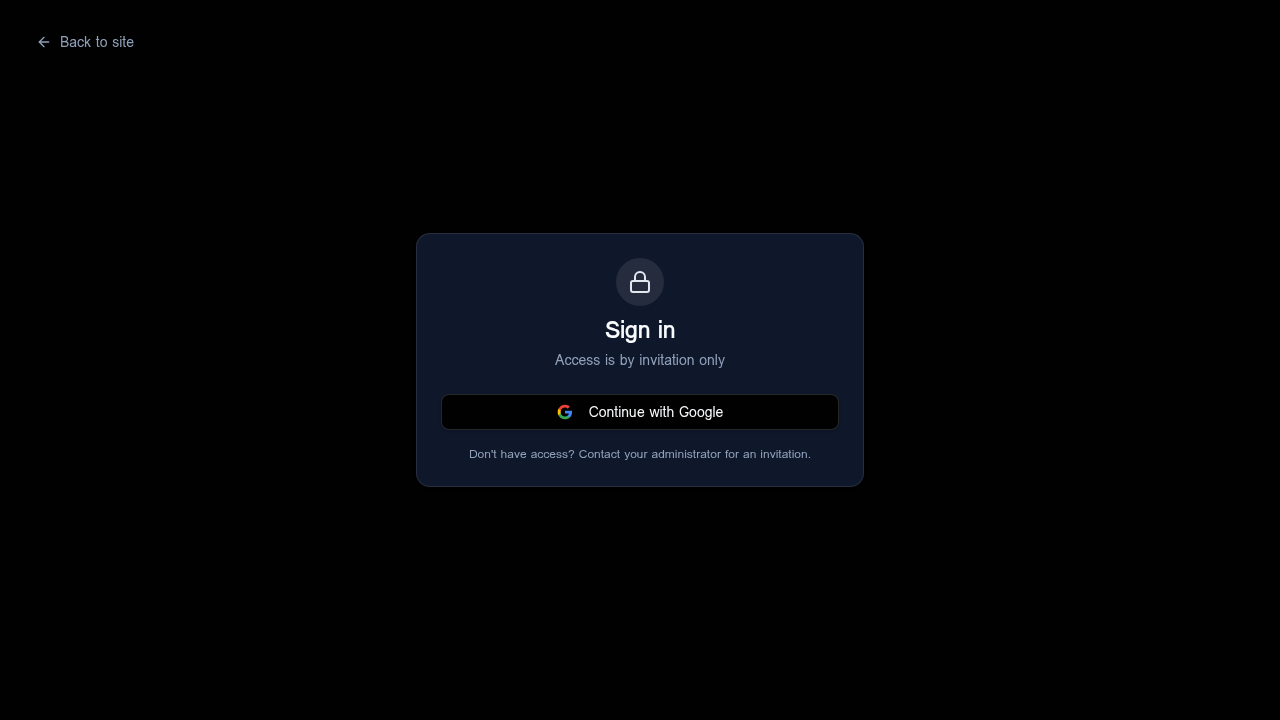
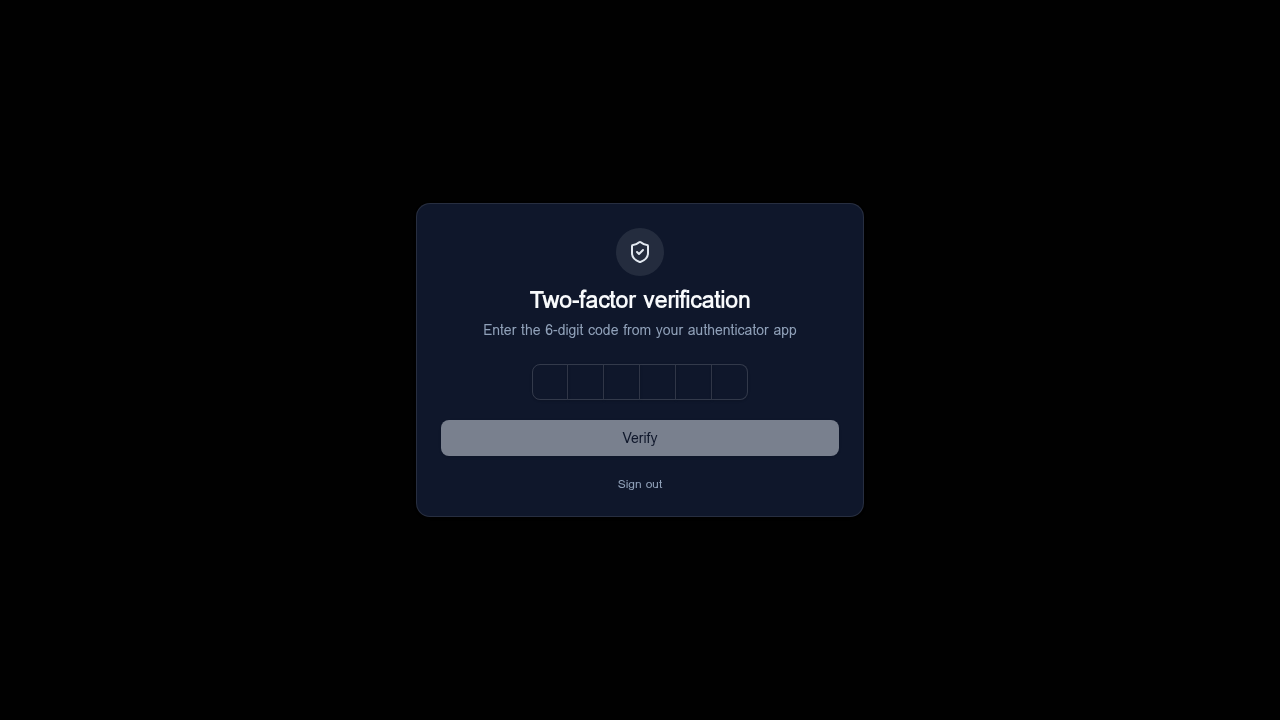
2FA is mandatory. Your session can't reach the dashboard until a valid code is accepted.
3. Connect your VALR account
Tarzan needs read + trade permission on your VALR account. Withdrawal permission is never required — and you should never grant it.
- 1Generate a VALR API keyIn VALR → Account → API Keys, create a new key. Tick 'View Account' and 'Trade'. Leave 'Withdraw' unchecked.
- 2Paste both values into TarzanOpen the dashboard. In the API panel, paste the API Key and Secret, then click Save. Both fields are encrypted server-side with AES-256-GCM before storage.
- 3Lock the inputsAfter saving, press the 🔒 Lock button. The fields become read-only so you don't accidentally overwrite them. Click again to unlock if you need to rotate keys.
VALR API credentials
LockedAPI Key
••••••••••••••••3f2a
API Secret
••••••••••••••••••••••
The plaintext secret never leaves your browser unencrypted, never appears in logs, and is never returned to the client after saving.
4. The dashboard at a glance
The dashboard is split into four zones:
 Dashboard
Balance
R 24,318.40
Today P&L
+ R 612.40
Open positions
3 / 3
BTC · ETH · SOL — managed automatically
- Balance cardLive ZAR + crypto balance pulled from VALR.
- Open positionsEach row shows entry, current, stop-loss and take-profit.
- Trade historyClosed trades with P&L coloured green/red.
- Bot controlsEnable / pause toggle, mode (Paper vs Live), manual scan.
5. Set your risk parameters
These four numbers decide how aggressive Tarzan is. Start conservative — you can always increase later.
Max trade (ZAR)
R 1,000
Maximum size of any single position.
Max open positions
3
Hard cap on concurrent trades.
Stop-loss %
3.0%
Position is closed automatically at this loss.
Take-profit %
6.0%
Position is closed automatically at this gain.
The daily loss limit pauses the bot for the rest of the day if total losses exceed the threshold. This is your circuit-breaker — keep it on.
6. Running the bot
- 1Start in Paper modePaper mode simulates trades against live prices without spending real money. Run for 24–48 hours to verify behaviour.
- 2Switch to LiveToggle 'Mode' to Live. Tarzan will start placing real orders on your next signal.
- 3Hit Enable botFlip the green Power switch. The bot heartbeat will appear in the activity log within 60 seconds.
- 4Pause anytimeFlip the switch off — open positions stay open with their stops, but no new entries are taken.
Run scan nowEnable botLock keys
7. Security & the audit page
Admins can open /security-audit to see the latest scan results and the exact RLS policy changes made to the database.
Latest security scan — all critical issues resolved
- ResolvedEXPOSED_SENSITIVE_DATAVALR keys encrypted (bytea + AES-GCM)
- ResolvedPRIVILEGE_ESCALATIONRoles moved to user_roles table + has_role()
- ResolvedMISSING_RLSRLS enabled on profiles, settings, trades, user_totp
- ResolvedWEAK_AUTHTOTP enrollment + verification enforced
- API keys encrypted at rest (AES-256-GCM)
- 2FA required on every session
- Row-Level Security on every table
- Roles stored in separate user_roles table
- Service-role key never exposed to the client
8. Troubleshooting
My 2FA code keeps failing.
Make sure your phone's clock is set to automatic / network time. TOTP codes are time-based and drift even by 30 seconds will cause failures.
The balance card shows R 0,00.
Either your VALR API key has not been saved yet, or the key is missing the 'View Account' permission. Re-issue the key on VALR with the right scopes.
I see 'Provide BOTH API key and secret'.
The Save action requires both fields together. To clear saved credentials, leave both blank and Save.
Bot won't enable.
Check the activity log for an error. Common causes: missing keys, daily loss limit already hit, or VALR rate-limit (429). Wait 60 seconds and try again.